Monday, March 21, 2011

Good tips for Opera Browser

1. BITTORRENT IN OPERA BROWSER

* To disable Opera's BitTorrent client:
- Type on your Opera URL bar -->
opera:config#BitTorrent
- Press "Enter", and
uncheck "Enable", click "Save", and BitTorrent is disabled.

* In order to use a third-party BitTorrent client, instead of Opera's BitTorrent client:
- Go to Tools > Preferences > Advanced > Downloads
- Uncheck "Hide file types opened with Opera"
- Type "torrent" in the Quick find box
- Double-click the line that looks like this: application/x-bittorrent torrent (you can select to either use your system's default BitTorrent client -Open with default application- or define a preferred client -Open with other application-)
- This will not disable Opera's BitTorrent client, but it will associate Torrent files with your preferred BitTorrent client.

2. INCREASE THE NUMBER OF SPEED DIAL SPOTS

- Look for "speeddial.ini" file in C:\WINDOWS\Application Data\Opera\OPERA\profile
- Before editing it: Close Opera! (very important). And keep a copy of speeddial.ini before making any change.
- Open speeddial.ini and type on the bottom of the page:

[Size]
Rows=3
Columns=5
You can choose the number of rows and columns at your ease!
- Click save to keep the changes.
- Now you can open Opera.

3. HOW TO REMOVE THE SPEED DIAL SEARCH BOX


- Type on your Opera URL bar -->
opera:config#Speed%20Dial
- Press "Enter" and where it says "Speed Dial Search Type" set to 0

4. HOW TO REMOVE OR HIDE THE SPEED DIAL

It's quite easy!, just click "Hide Speed Dial" (on the right bottom of Speed Dial)

5. HOW TO RESUME A MISSING TRANSFER FROM THE TRANSFER TAB


- Start download again and save with another name.
- Stop transfer after few seconds.
- Delete new download file.
- Rename old download file with new name.
- Resume transfer.

6. HOW TO USE ADOBE ACROBAT READER WITH OPERA


- Look for "nppdf32.dll" in your PC (it's hidden in the Acrobat Reader Plugins folder)
- Copy it to Opera's Plugins folder (C:\Program Files\Opera\Program\Plugins).

- Now Opera will launch the Acrobat Reader when you use Opera to view .pdf files.

You can change the way Opera opens the PDF documents in Tools > Preferences > Advanced > Downloads. Edit the MIME type assosiated with pdf files to either "Use plug-in" or "Open with default application".

7. HOW TO VIEW OPERA SAVED PASSWORDS

- Bookmark link of any good View Passwords Bookmarklet for Opera as the one you can find here or here.
- Open the login page with username and password (you can see yellow fields, if you really saved the password before), press "Wand button" on Opera toolbar or "Ctrl + Enter", and then "Esc" very quickly.
- Now click View Passwords bookmarklet on your Bookmarks.

There are free apps which do this work too, like "OperaPassView".

8. HOW TO INSTALL OPERA EXTENSIONS MANUALLY

If you don't have the .ocx file, download it first by right-clicking and "save linked content as". Once you have the .ocx on your desktop, just drag it over Opera browser and accept the installation. Done!

More info on Opera Help and Tamil's blog

* TRADUCCIÓN EN ESPAÑOL by Google. "Buenos consejos para el navegador Opera"


Sunday, March 20, 2011

Oncogene Therapy Ideas --- Ideas para Terapia Oncogénica


Theory of Cell Power:

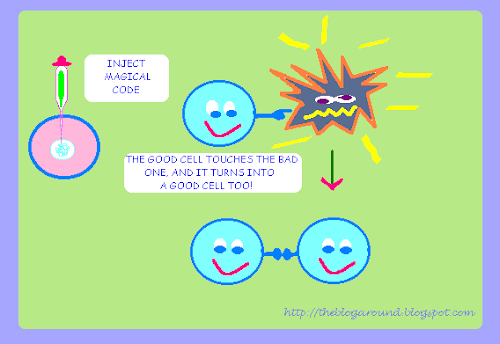
  Inject equal cells to the affected organ, which carry a special message in their genetic code, to occupy the affected area and kill the bad cells as they touch them ("Get out of here, go away, that this site is mine").
 The idea came to me at hearing on the radio an experiment: healthy hepatocytes were injected by the portal vein instead of doing an hepatic transplant, and the patient began to improve all analytical parameters.

  It would be a mix of gene and cell therapy, we could insert the code of immune cells that kill the bad ones or just a message so that they self-destruct. It's as simple as knowing the codes and their effects, to make the one we want, and place into the healthy cell, which will be the lead singer's voice.

           ........................................................................................................

Teoría del Poder Celular:

  Inyectar células iguales al órgano afecto, que llevan un mensaje especial en el código genético, el de ir ocupando la zona afecta y a la vez irse cargando a las células malas conforme las van tocando ("quítate de aquí, desaparece, que este sitio es mío").
  La idea me vino al oír en la radio el experimento de que en lugar de hacer trasplante hepático se inyectaron hepatocitos sanos por la porta, y la paciente empezó a mejorar toda la analítica.

  Sería una mezcla de terapia génica y celular, podríamos insertarles el código de células inmunitarias que se carguen a las malas o simplemente un mensaje de que las malas se autodestruyan. Es tan simple como conocer bien los códigos y sus efectos, fabricar el que queremos, e introducirlo en la célula sana, que será la que lleve la voz cantante.


Theory of Cell Nutrition:

  Starting from the idea that the cell does not nourish it disappears, we could change the nutrient receptors of tumor cells to stop feeding them, while healthy cells would keep on nourishing and continue to multiply, coming to occupy the space left by the tumor cells that has been disappearing.
   What you need to get is that nutrients do not arrive, specifically, to malignant cells.

   * How do you get that?
   One possibility would be to modify the genetic code of food to only penetrate healthy cells.
   Another possibility would be to modify or block the membrane receptors of malignant cells to avoid any nutrient can penetrate.
   And another possibility would be to incorporate a genetic message in tumor cells in order they phagocytose each other or self-phagocytose.

     .............................................................................................................

Teoría de la Nutrición Celular:

   Partiendo de la idea de que la célula que no se nutre desaparece, podríamos modificar los receptores de los nutrientes de las células tumorales para que dejaran de alimentarse, mientras que las células sanas seguirían nutriéndose y multiplicándose, llegando a ocupar el espacio dejado por las células tumorales que han ido desapareciendo.
Lo que hay que conseguir es que los nutrientes no lleguen, de manera específica, a las células malas.

   * ¿Cómo conseguir ésto?
  Una posibilidad sería modificar el código genético de los alimentos para que sólo penetren en las células sanas.
  Otra posibilidad sería modificar o bloquear los receptores de membrana de las células malas para que no pueda penetrar nutriente alguno.
  Y otra posibilidad sería incorporar un mensaje genético en las células tumorales para que se fagocitaran unas a otras o se fagocitaran a sí mismas.


How to convert FLV or MP4 to Xvid with VirtualDub and join several video segments

This article is also useful to learn how to compress AVI video to Xvid, Divx or Dx50. You must take into account that VirtualDub just work with raw AVI video or its compressed formats.
A. FLV format
In order VirtualDub can open FLV, you must install "ffdshow tryouts" and "FLV Input driver":
1. Unzip FLV Input driver and put "FLVInputDriver.vdplugin" into your VirtualDub\plugins folder.

2. In the start menu click
"ffdshow-tryouts" and open "VFW configuration" (not "Video decoder configuration" which is for DirectShow decoding), go to the Decoder tab, Codecs section, and make sure FLV1 and VP6F are set to libavcodec (click on disabled and choose libavcodec).

3. Now VirtualDub is ready to open FLV!

* So that VirtualDub can read/uncompress the mp3 audio from FLV and other video formats:

Options --> Preferences --> AVI --> Check "Prefer Internal Audio decoders over..."

If you wish to convert FLV to Xvid or Divx (you must have the Xvid codec or ffdshow-tryouts installed):

1. *Follow this step just if you wanna join two or more video segments later.
Click Video --> Frame Rate and choose "Change frame rate to (fps)": put the same number as current followed by double 0: If it's 29.917 fps, change to 29.91700 fps (this is important, if you wanna join segment videos later, as they must have the same video and audio sampling rate).

2. If you wanna change the video size, or recut the image: add filters by clicking on Video --> Filters (first "perspective", then "resize"). The most common sizes are 320x240, 384x288, 480x360, 576x432, 592x336, 640x480.

3. Now to compress video: Video --> Full Processing Mode --> Compression: choose Xvid Codec and click "configure". On the right of Target Quantizer/Bitrate, click "calc": Put the exact duration of the video, and the wished Target Size (for example 8000 Kb for a 3 minutes video). The bigger the file size is, the higher the target bitrate is, and the higher the quality is.
* Clicking on "Other Options" you can choose the Encoder FourCC used: Xvid, Divx or Dx50.

4.And to compress audio: Audio--> Full Processing Mode --> Compression: choose Lame MP3 (you must have installed lameACM codec) --> 44100Hz, 128 kbps, CBR stereo (for example).

5. Now go to File --> Save video as AVI. It can takes more or less depending on the file size.

How to join several AVI video segments (VirtualDub can't join FLV video segments): First you must take into account, as VirtualDub documents say,: "What is the append function for, then? It's to re-splice a movie that has been split across multiple files to circumvent file size limits, mainly from video capture. Due to the granularity of audio and video streams, particularly when audio compression is in use, the files can't be cut exactly cleanly, and thus the video stream will be slightly longer than the audio stream, or vice versa. For this reason the Append function does an unaligned splice." That means the video segments must have the same Video and Audio Sampling Rate, same target bitrate, size, etc
1. Open the first video file, then select Video and Audio in "Direct Stream Copy".

2. Move video to the last frame.


3. File --> Append AVI segment --> select the second video segment.


4. File --> Append AVI segment --> select the third video segment.

5 File --> Save old format AVI (in that way, you keep the Xvid format).


In case you get an error "Cannot append segment: Video streams have different data formats", you must get they have the same Frame Rate:


1) Open VirtualDub
2) Open the first video.

3) Set "Video" and "Audio" to "Direct Stream Copy"

4) Video --> "Frame Rate" --> "Change framerate to (fps)": put the same number as current followed by double 0: If it's 29.917 fps, change to 29.91700 fps (frames per second)

5) Save old format AVI, with a new filename.

6) Keep VirtualDub open

7) Open the second file

8) Save old format AVI, with a new filename, and so on with the rest of segments.

9) Close VirtualDub

10) Open VirtualDub

11) Open the first file with updated Frame Rate.

12) Set "Video" and "Audio" to "Direct Stream Copy"

13) File --> Append AVI segment --> select the second video segment with updated Frame Rate.

14) Save old format AVI, with a new filename, and you have a Xvid video file with all the segments together!


B. MP4 format (H.264):
VDub can open MP4 video if you install the plugin: DShowInputDriver.vdplugin in Vdub plugins folder. However VDub can't open MP4 video if it has AAC audio (AAC- LC audio type). After many experiments, I got to that point. VDub can't open H.264 AVC1- AAC LC because of the AAC- LC audio (though ffdshow has the codecs for AAC and many more, it doesn't work for Vdub, at least I haven't got yet)
Many online tools let you download YouTube videos in MP4 format with high quality. If you wanna append MP4 (H.264 AVC1- AAC LC audio) video segments with Vdub, as you can't open them in Vdub, you could use a "mp4 to AVI converter" to convert the AAC audio to Lame MP3 (take into account the loss of video quality during conversion, though you keep the H.264 AVC1 format).
To check the real codec type and other parameters, before using MP4 to AVI converter, you can use Gspot.
C. Xvid format:

Many online tools let you download YouTube videos in AVI (Xvid/Divx) too. To open it with Vdub you must be sure there is no conflick with the codecs. First from Mmview disable Xvid decoder. Then, open ffdshow (VFW) and set Xvid to livabcodec.
My piece of advice when trying to open a video file in Vdub: check both the video and audio types it contains with Gspot and check if you have the plugins for Vdub or the codecs for that video/audio file.

Saturday, March 19, 2011

His Girl Friday - Luna Nueva (1940)

His Girl Friday still 2

   A film about Journalists and Journalism. It has been selected for preservation in the United States National Film Registry. The film is in the public domain. It's a good film.

* Título en Español: Luna Nueva.
Directed by: Howard Hawks.

Starring: Cary Grant and Rosalind Russell.

Distributed by: Columbia Pictures.


   More info on
Wikipedia


Friday, March 18, 2011

How to get Xvid codec to show up in VirtualDub compression list

Xvid logo
As a beginner user of VirtualDub, a very useful and free application for capturing and processing video, I found certain difficulty in making the Xvid codec to appear in the compression list after having installed it, and after hours of research I reached to the key.
First you should install Xvid codec in your computer: you can download the version for Windows from Xvid Binary Download Page or from Koepi's site.
Next thing you should do is check whether Xvid codec appears in the VirtualDub compression list. In the case it's not in the list, you should check if the Xvid codec is enabled, there is a very useful application to do that: MMCompView v1.10 (for older Windows versions) or InstalledCodec (for recent Windows versions).
Once you've checked Xvid is enabled but it's still not showing up in the VirtualDub list, sometimes it happens that, you can add the Xvid codec manually as it's explained in not an easy way here. Basically the steps you must follow are:
1. Search for "system.ini" file in your PC and open it (keep a copy of it before editing it, just in case...).
2. Inside, look for [drivers32] and below it you'll see a list with all the video codecs installed in your PC.
3. Add vidc.XVID=xvidvfw.dll to the list, and click save file. Then, open VirtualDub and check that the Xvid codec shows up in the video compression list.
.................................................................................................
Cómo conseguir que el codec Xvid aparezca en la lista de compresión de VirtualDub:
Como usuario principiante de VirtualDub, aplicación gratuita muy útil para la captura y procesamiento de video, encontré cierta dificultad en conseguir que el codec Xvid apareciera en la lista de compresión después de haberlo instalado, y después de horas de investigación di con la clave.

En primer lugar debes instalar el codec Xvid en el ordenador: se puede descargar la versión para Windows de Xvid Binary Download Page o en el sitio de Koepi.

Lo siguiente que debe hacer es comprobar si el codec Xvid aparece en la lista de compresión VirtualDub. En el caso de que no esté en la lista, debes comprobar si el codec Xvid está habilitado, hay una aplicación muy útil para hacer eso: MMCompView v1.10 (para versiones antiguas de Windows) o InstalledCodec (para versiones recientes de Windows ).

Una vez que hayas comprobado que Xvid está habilitado pero aún no aparece en la lista de VirtualDub, a veces ocurre ésto, puedes añadir el codec Xvid manualmente como se explica en una manera nada fácil aquí (en inglés). Básicamente los pasos que debes seguir son los siguientes:
1. Buscar el archivo "system.ini" en tu PC y abrir (guarda una copia del mismo antes de editarlo, por si acaso ...).
2. En el interior, buscar [drivers32] y debajo de ésto puedes encontrar una lista con todos los codecs de vídeo instalados en tu PC.
3. Añadir vidc.XVID=xvidvfw.dll a la lista, y hacer clic en Guardar archivo. A continuación, abrir VirtualDub y comprobar que el codec Xvid aparece en la lista de compresión de vídeo.